

creating a widget
last updated: September 3, 2026
creating a barebones widget is very simple: go to dashboard -> my widgets -> press + create widget.
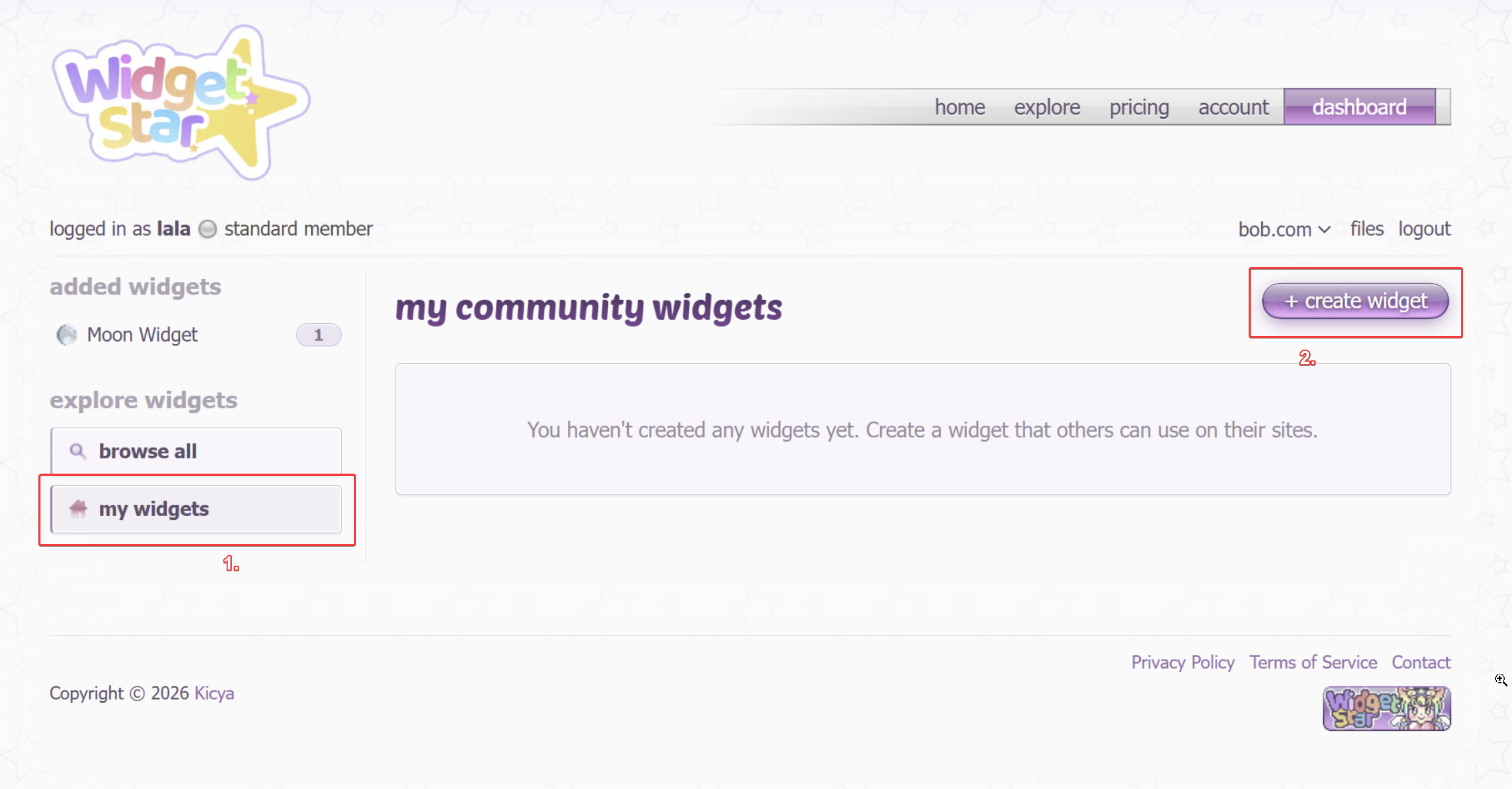
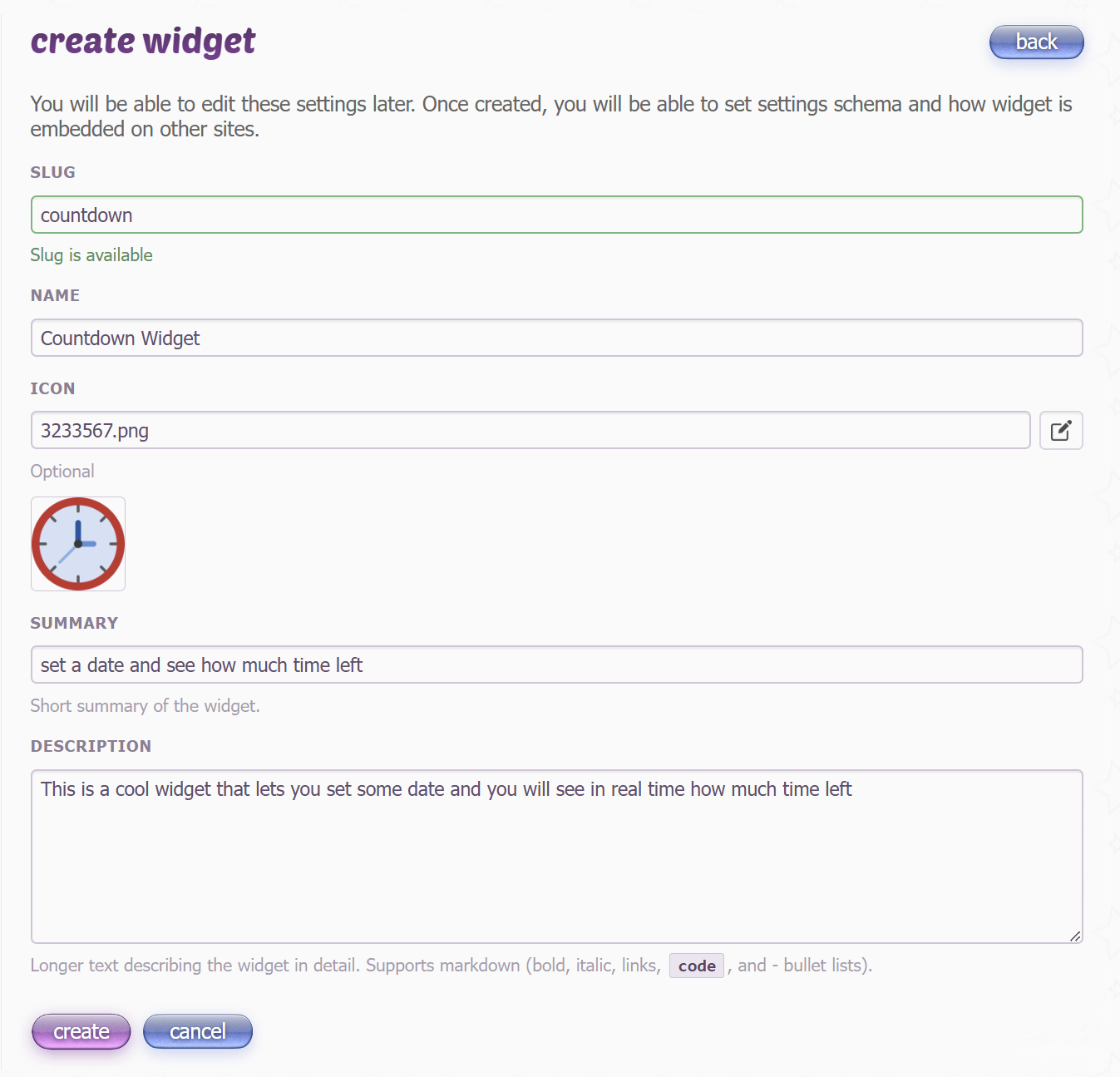
you will then be prompted to enter some basic info about your widget. you don't have to fill out everything perfectly for now, as you'll be able to edit it any time when widget is actually ready.
choose how it will be embedded
by going to embedding tab, you will be able to choose whether your widget is rendered inside iframe, or you will use a script to do the rendering.
in general, making iframe widgets is simpler, since you don't have to create the elements with JS and just use HTML, CSS and JS as a usual page. on other hand, script widgets render much faster, have less issues with sizing and are less restricted, since you can access the host page.
iframe:
- + easier to code
- + dont have to worry about inserting styles and all elements with JS
- - slower to load
- - may have sizing issues
- - cant access the host page
script:
- + super fast to load
- + full access to the host page
- + not restricted by iframe viewport
- - requires more advanced knowledge of JS
- - having to create all elements with JS is a bit annoying
for our simple countdown widget, i will go with script type.
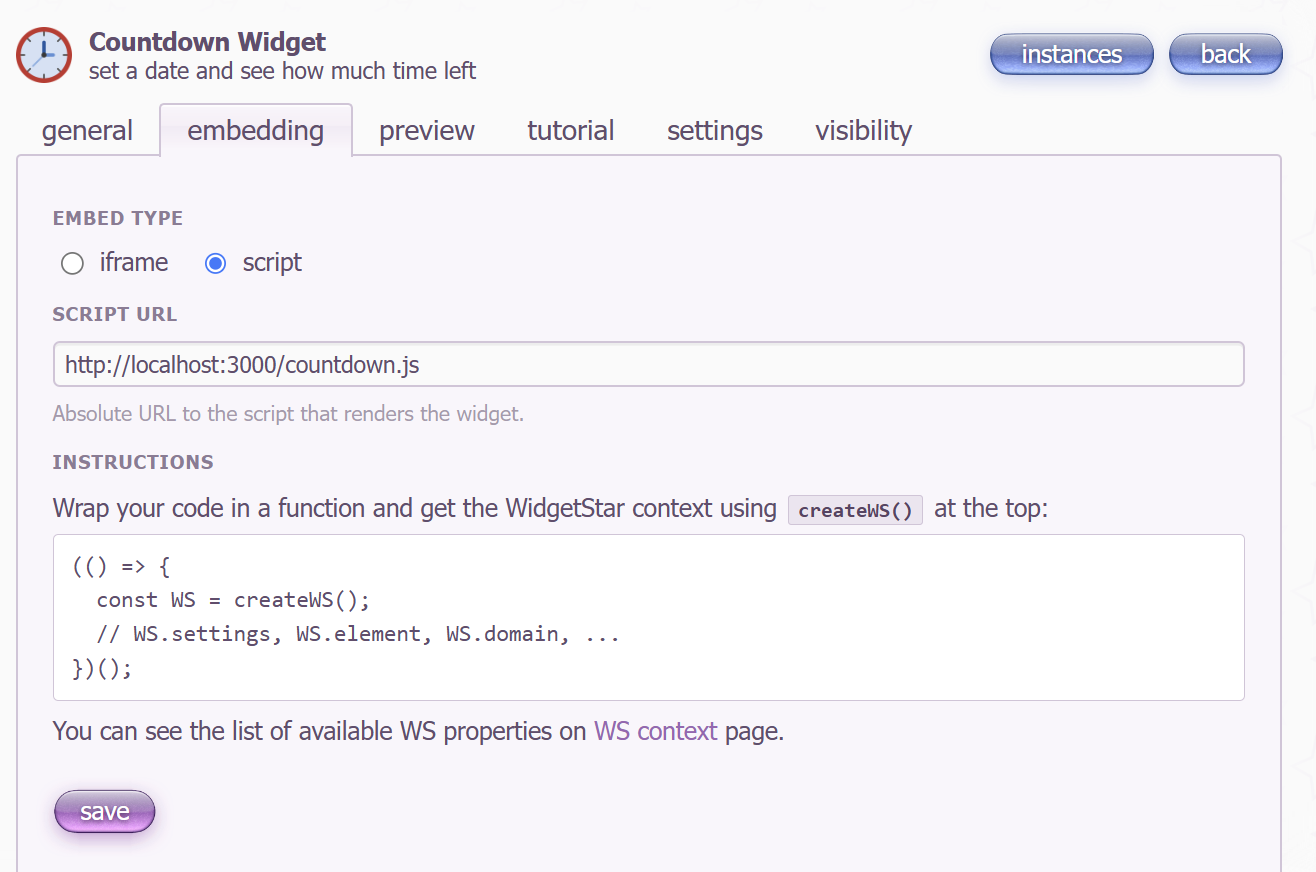
you also have to set the page/script URL for the widget. this is where widget code is hosted - you have to host it on your website. this can be nekoweb or any other hosting.
develop the widget
well, now you actually get to code. wrap a function and get context object:
(() => {
    const WS = createWS();
    // ...
})();
WS contains the context about widget instance:
element- HTML element where widget needs to be rendered (scriptonly)settings- object with all instance settingsinstanceId- widget instance iddomain- domain where widget is rendered- and more...
Let's write a dummy widget that just shows current time:
(() => {
    const WS = createWS();
    const div = document.createElement("div");
    div.innerHTML = new Date().toLocaleTimeString();

    WS.element.appendChild(div);
})();
And now create an instance and look at the preview:
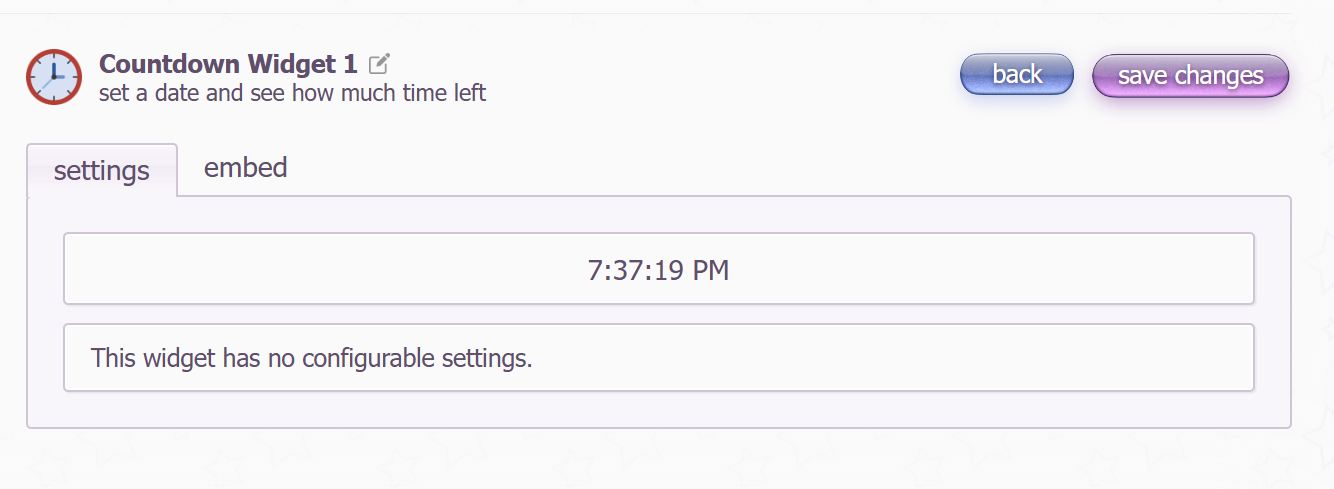
Our first ever widget rendered!
widget settings
since i want to make a countdown widget, in order to show the countdown, widget obviously needs to know the target date to count to. this is where you create your first setting. go to settings tab and press add field:
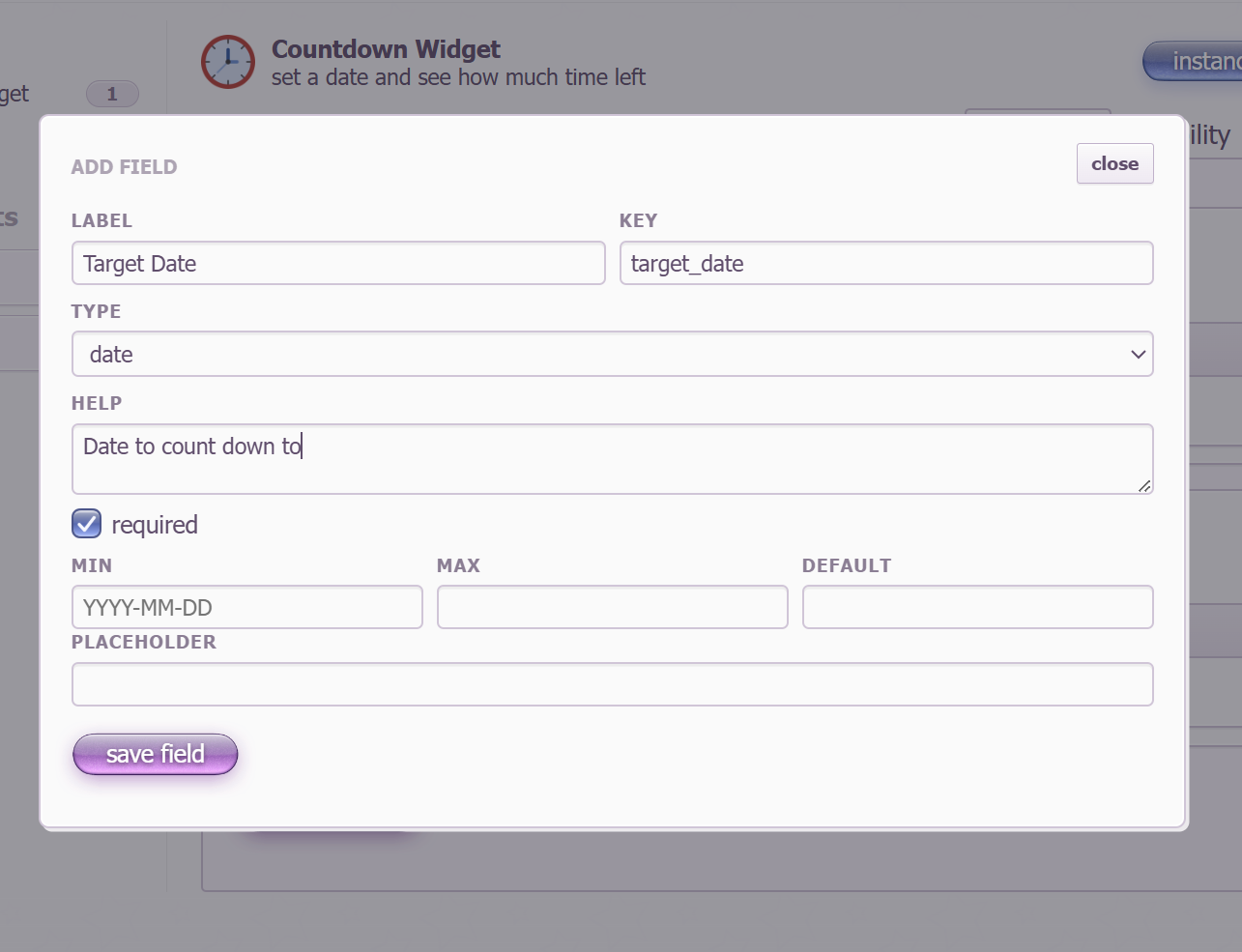
I create a setting with date type, since this is what I need. there's a huge variety of possible settings, you can read more about each and how they look like in code here.
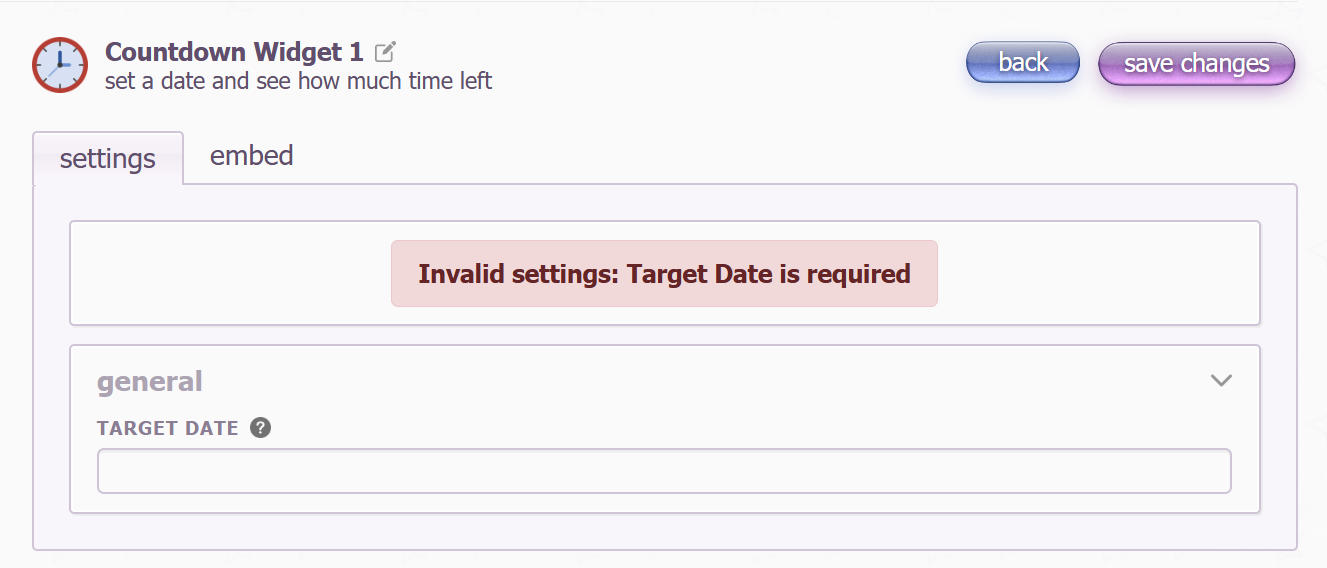
if we come back to our widget preview, we'll see that we are getting error, since we marked "Target Date" as required. Now let's come back to our code, read the setting from WS.settings, count days til the date and display it:
(() => {
    const WS = createWS();
    const settings = WS.settings;

    const currentDate = new Date();
    const targetDate = new Date(settings.target_date);
    const days = Math.floor((targetDate - currentDate) / (1000 * 60 * 60 * 24));

    const div = document.createElement("div");
    div.innerHTML = `${days} days till ${settings.target_date}`;

    WS.element.appendChild(div);
})();
now let's check how it looks in preview:
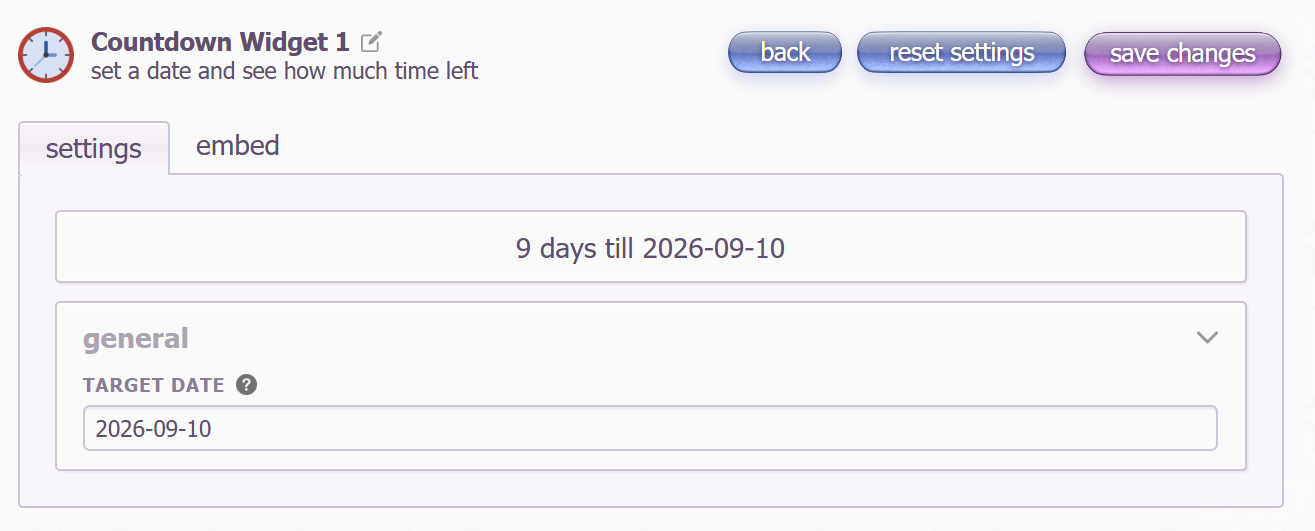
congratulations, you have created your first widget! if you're curious, this is how same widget would look like with iframe embed type:
<!DOCTYPE html>
<html lang="en">
<head>
    <script src="https://widget.st/js/iframe.js"></script>
</head>
<body>
    <div id="countdown"></div>
    <script>
        const WS = createWS();
        const settings = WS.settings;

        const currentDate = new Date();
        const targetDate = new Date(settings.target_date);
        const days = Math.floor((targetDate - currentDate) / (1000 * 60 * 60 * 24));

        const countdown = document.getElementById("countdown");
        countdown.innerHTML = `${days} days till ${settings.target_date}`;
    </script>
</body>
</html>
this guide should be enough to create most widgets. proceed to read if you want to learn more advanced topics like owner authorization and custom subpages.